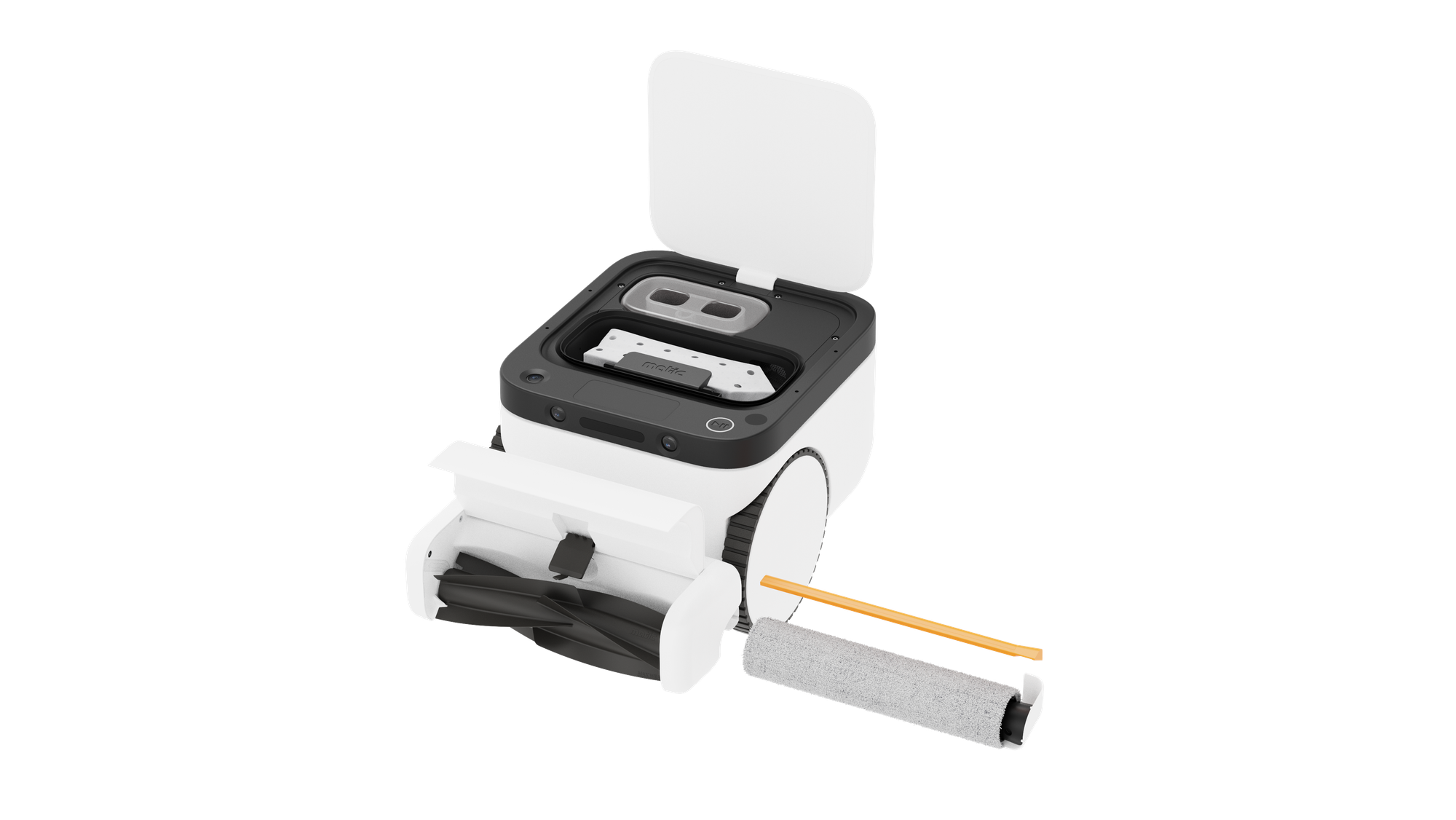
Matic Care and Maintenance Guide
A little care keeps Matic (and your floors) in great shape
By Marie Goerger • March 13, 2025
Updated on October 8, 2026
Your Matic robot vacuum and mop needs a little regular care to keep its suction, mopping, and navigation working well. This guide covers what to do each month, every few months, and when Matic prompts you.
Maintenance tools and materials
- Soft cloth
- Microfiber cloth (for the camera lenses)
- Declogging tool (included in your accessories box)
- Mop Tube Cleaning Tool (from support, for a recurring Wringer Clogged error)
- Replacement parts from the Matic accessories shop
Maintenance schedule overview
| When | Part | What to do |
|---|---|---|
| Every month | Brush roll | Clear hair from the ends |
| Mopping cavity & mop core | Wipe clean | |
| Side brush | Check for fraying | |
| Every 3 months | Water tank cartridge | Replace if your tank cap has a replaceable cartridge |
| Every 5–6 months | Brush roll | Check the max wear line around every 5 months; replace when worn |
| Vacuum filter | Wipe or rinse clean | |
| Caster wheel & drive wheels | Wipe with a soft cloth | |
| Camera lenses | Gently wipe with a lightly damp microfiber cloth | |
| As they wear | Mop roll | Replace when worn or prompted, typically every 1–3 months |
| Side brush | Replace when frayed, typically every 1–2 months | |
| When Matic asks | HEPA bag | Replace when full, typically every 1–4 weeks |
| Water tank | Refill when empty or descale when prompted | |
| Wringer | Clear debris; troubleshoot mop tubes if necessary | |
| Duct | Clear with the included declogging tool |
Maintenance and replacement frequency may vary depending on usage.
Monthly maintenance
Remove hair from the brush roll
Hair can accumulate at the ends of Matic’s tangle-free brush roll. Remove the brush roll monthly and clear any buildup. No scissors needed.
Clean the mopping cavity and mop core
A clean mop core keeps mopping efficient and prevents residue buildup.
Check the side brush
Inspect the side brush each month and replace it when it’s frayed or worn, typically every 1–2 months.
To check:
- Remove the water tank and HEPA bag.
- Turn Matic onto its right side (when facing the robot head-on).
- Inspect the brush for fraying or damage.
See the full side brush replacement instructions.
Every 3–6 months
Every 3 months
Replace the water tank cartridge (newer tank caps only)
Only newer water tank caps have a replaceable cartridge; older caps don’t, so there’s nothing to replace. If your cap has a cartridge, replace it every 3 months to keep your tank fresh. See the full water tank cartridge replacement instructions, or order replacement cartridges.
Every 5–6 months
Check the brush roll
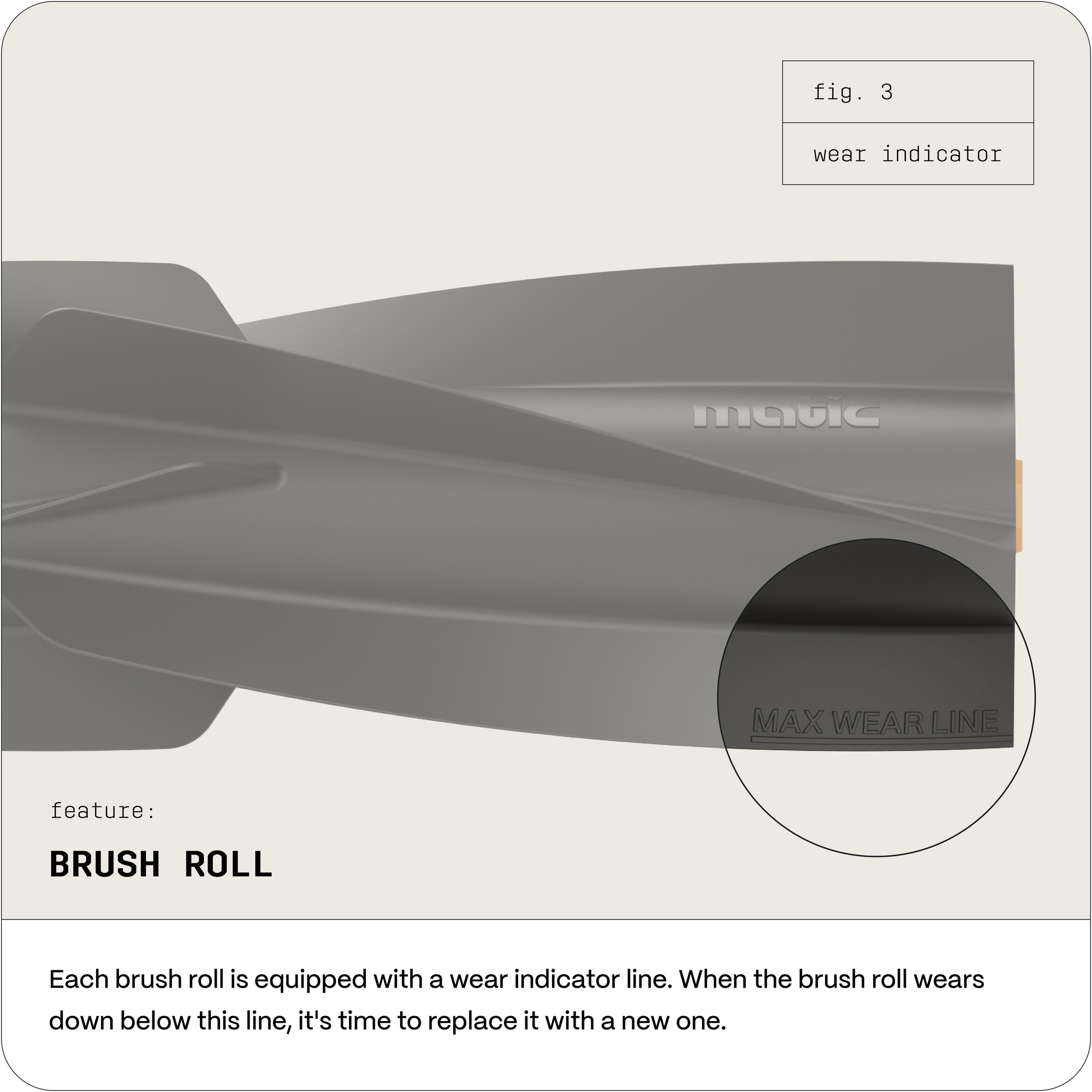
Around every 5 months, depending on usage, open the cleaning head and inspect the brush roll flaps. One flap has a max wear line. If the flaps are worn past it, replace the brush roll.
Clean the vacuum filter
A dirty vacuum filter can restrict airflow and reduce suction. Open the lid and remove the HEPA bag. The vacuum filter is in the back right of the bag cavity. Insert a small coin into the groove at the top center of the filter and gently pull outward to release it. Wipe away debris with a paper towel, and rinse the filter under water if needed to remove stubborn dirt.
Clean the caster wheel and drive wheels
Remove the water tank and HEPA bag, then turn Matic on its side. Wipe the caster wheel on the underside and the drive wheels with a soft cloth, clearing any debris from the wheels and the areas around them.
Clean the camera lenses
Clean cameras help Matic navigate and detect obstacles. Gently wipe the glass camera lenses with a lightly damp microfiber cloth. Avoid getting moisture near the seams around the cameras. They aren’t waterproof, and excess moisture could cause damage.
Maintenance when prompted
Matic will prompt you in the app or on its display screen when one of these needs attention.
Bag Full
Bag Full appears when the HEPA bag is full, typically every 1–4 weeks depending on home size and cleaning frequency. Open Matic’s lid and lift out the bag by its plastic tab. Avoid pressing on the rubber lining around the cavity, which can wear down over time. Insert a new bag with the tab toward the front of the bag cavity and press the tab down until it clicks into place. Close the lid and press play.
Still seeing Bag Full after replacing the bag? Check that:
- The bag isn’t damaged, especially the Matic sticker. That side of the bag is sealed by design so the fabric isn’t drawn into the vacuum inlet, and a torn sticker can block airflow.
- The bag is fully seated in its slot.
- The duct isn’t clogged. Clear it with the declogging tool (see Duct Clogged below).
- The vacuum filter is clean and properly installed. See the full vacuum filter cleaning instructions.
If Bag Full still appears, see the full Bag Full troubleshooting instructions.
Water Tank Empty
Water Tank Empty appears when the tank is empty, missing, or not inserted properly. Fill the tank and make sure it’s fully inserted.
Mop Roll Worn Out
Mop Roll Worn Out appears when your mop roll may need replacing. Mop rolls typically last 1–3 months, depending on usage. Remove the mop roll to inspect and clean it, and replace it if it’s worn.
After installing a new mop roll, go to Settings → New Mop Roll Inserted in the Matic app so Matic knows to fully saturate it before the next mopping session.
If Mop Roll Worn Out still appears after you replace the mop roll, check that it’s fully inserted and clicked into place. See the full Mop Roll Worn Out troubleshooting instructions.
Wringer Clogged
Wringer Clogged usually means debris has built up in the mop wringer. To clear it:
- Remove the mop roll, then pull out the wringer behind it.
- Wipe away any debris and rinse the wringer.
- Reinstall the wringer and mop roll.
If Wringer Clogged still appears after you clean the wringer, the mop tubes may be clogged. Clearing them requires a Mop Tube Cleaning Tool, which isn’t included with Matic. To request one, contact Matic support in the app (Settings → Support → Contact Us). This is a different tool from the declogging tool in your accessories box, which is only for the vacuum duct. See the full mop tube cleaning instructions and video.
Duct Clogged
Duct Clogged appears when debris is blocking the duct. Clear it with the declogging tool from your accessories box (not the Mop Tube Cleaning Tool), then press the power button to clear the error. If Duct Clogged comes back, check that the brush roll is seated correctly and rotates freely, and that the air flap (the black rectangular flap above the brush roll) moves up and down freely. See the full Duct Clogged troubleshooting instructions.
Descaling Needed
Descaling Needed appears when minerals from your water have built up inside Matic. Descaling flushes these deposits out and prolongs the life of your Matic. Descale only when Matic prompts you, using a Descaling Pouch.
Each Descaling Pouch has two layers: outer paper packaging and a smaller water-soluble inner pouch. Only the inner pouch goes in the tank.
- Fill the water tank to 90%.
- Tear open the outer paper packaging and take out the inner pouch. Don’t put the paper packaging in the tank.
- Drop the inner pouch directly into the water tank. Don’t cut or tear it open; it dissolves on its own. Don’t add cleaning solution while descaling.
- Continue using Matic normally until the water tank is empty. After that, go back to mopping with water only or with Aunt Fannie’s cleaner.
See the full Descaling Pouch instructions.
Additional support
Need more help? Submit a ticket in the Matic app (Settings → Support → Contact Us) or email us at support@maticrobots.com. We’re here for you!